 Rollmend
Your Google Photos Takeout, with the right dates again
Google Takeout puts the real date, place and caption of your photos in separate .json files. Copy the photos to a new app and many of them show the download date instead. Rollmend reads your Takeout folder or zip files, matches each photo and video with its JSON, writes the information back into the files and gives you a clean folder sorted by year / month.
Scan my Takeout for free Pricing ($15 once)
- Runs in your browser, offline – photos are never uploaded
- Handles .supplemental-metadata.json, cut-off names, “(1)” copies, “-edited” files, live photos
- Free scan and report for everything; fix 50 files free
What Rollmend does
Matches photos with their JSON
Exact names, the new .supplemental-metadata.json names, names cut off at 46–51 characters, “(1)” in either position, “-edited” copies (also in other languages), old exports without the media extension, and the JSON “title” field.
Writes the real date into the file
JPEG and PNG get EXIF DateTimeOriginal (plus time-zone offset), MP4/MOV videos get their QuickTime creation time. HEIC dates are patched in place. File times in the zip are set to the photo date.
Location and description
GPS coordinates from Google are written as EXIF GPS (photos) or a location tag (videos); captions become EXIF/XMP descriptions. Where a format can’t be edited safely, an .xmp sidecar is written instead.
Removes album duplicates
The same photo in an album and in “Photos from 2019” is exported once. Album membership is kept in Rollmend-albums.csv, and you can still add album folders if you want them.
Live and motion photos
The video half of an iPhone Live Photo or a Pixel motion photo gets the date of its still image, even though Google gives it no JSON.
Clear report first
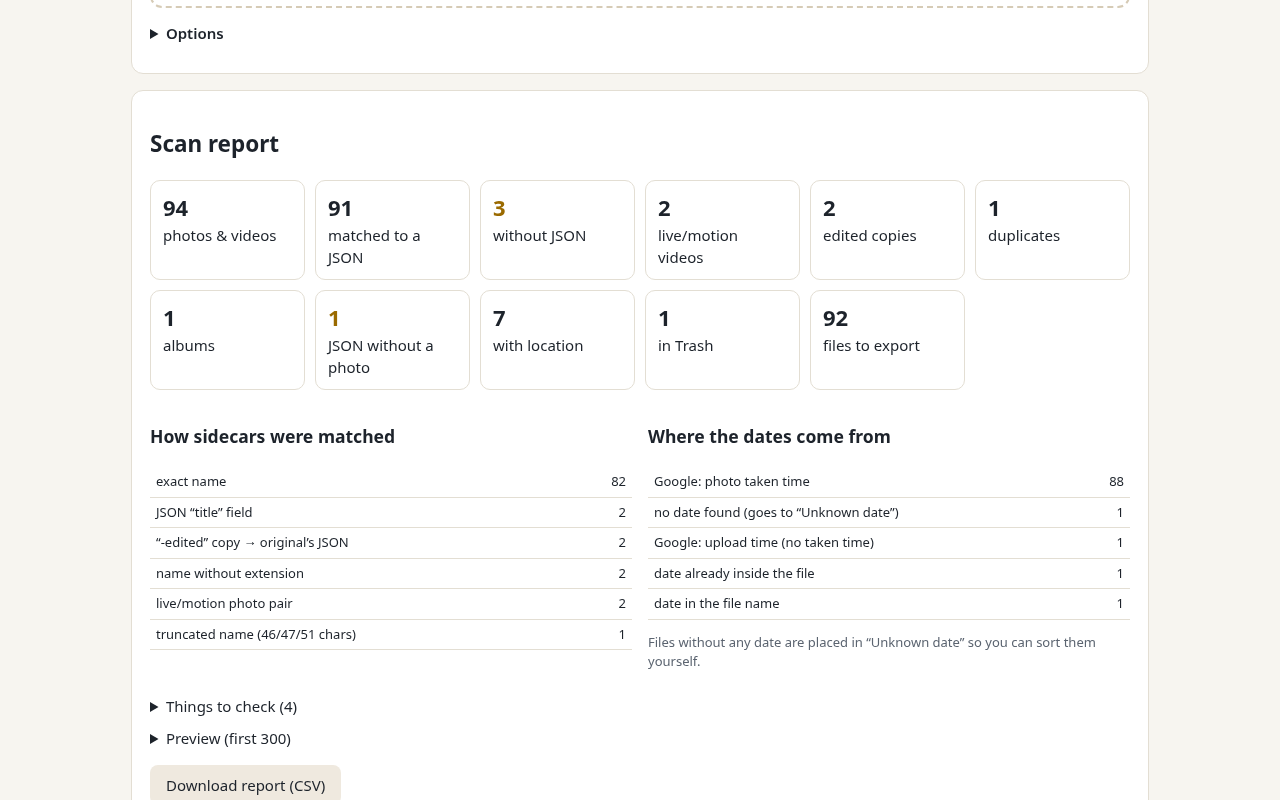
Before anything is written you see how many files were matched, how, where each date comes from and which files need your attention – and you can download the full report as CSV.
How it works
- Download your Google Photos export from Google Takeout (zip). Either extract it, or keep the takeout-*.zip parts.
- Open Rollmend and choose the extracted Takeout folder – or select all zip parts at once.
- Check the scan report and the options (time zone, keep or replace camera dates, folder layout).
- Click Fix and export. You get a zip (or a folder) organised by year and month, plus a CSV report.
Your original Takeout files are only read, never changed. Keep them until you have checked the result in your photo app.
Guides
Good to know before you start
- Rollmend needs a modern desktop browser. Chrome and Edge give the best experience (folder picker, saving very large zips directly to disk); Firefox and Safari work with the folder upload or zip fallback.
- Google stores the time in UTC. Rollmend converts it to the time zone you choose – default is your computer’s. Photos taken while travelling may be an hour or more off in local time; the moment in time is still correct.
- HEIC files are only patched in place (date). Their location and caption go into an .xmp sidecar. RAW, GIF, WebP and some video containers (AVI, MKV…) are copied unchanged with the right file time and an .xmp sidecar.
- Files without any JSON fall back to the date in their file name, then a date already inside the file. Files with no date at all go into an “Unknown date” folder instead of a wrong one.
- .tgz exports are not supported – extract them first or choose zip when you create the export.
Questions and answers
Why do my Google Takeout photos have the wrong date?
Takeout keeps the original files, but many of them – screenshots, WhatsApp images, scans, edited copies, videos – have no date inside. Google kept the date in its database and exports it in a separate JSON file. When you copy only the photos, apps fall back to the file’s modified time, which is the day you downloaded or extracted the export. Rollmend writes the JSON date back into the files.
Are my photos uploaded anywhere?
No. Rollmend runs entirely in your browser; the app page blocks all network connections with a strict Content Security Policy, and it works with Wi-Fi turned off once loaded. See the privacy page.
What does the free version do?
Scanning, the full report and the CSV are free with no limit. Fix and export works for the first 50 files (oldest first) so you can check the result. A one-time $15 license unlocks all files.
Does it work with 100 GB exports?
Rollmend reads files piece by piece and writes a ZIP64 archive as a stream, so it does not need to load the whole export into memory. In Chrome or Edge you can save one large zip directly to disk; in other browsers the download is split into parts (1–4 GB). Very large exports take a while – the work happens on your own computer.
Is Rollmend made by Google?
No. Rollmend is an independent tool and is not affiliated with or endorsed by Google.